
Guides
Trin for trin-vejledninger til opsætning og brug af systemet.
Guides - Cash register(s)
-
Guides
- General
- Booking
- Event
- Cash Register Add-On
- Gift Voucher Add-On
- Marketing Add-On
- Record Add-On
- Form Add-On
- Documents
- Online Payment Add-On
- SMS Add-On
- Integrations
- For developers
Cash register(s)
In GECKO Booking, you have the option of having one or more cash registers linked to your account. One cash register is included in the standard solution by default, however, you can purchase multiple cash registers if needed. Multiple cash registers can be necessary if your company is located at multiple locations and you therefore need a cash register at each location. By using multiple cash registers, the information from the different cash registers is kept separate, it is possible to use multiple stocks, and you can have different settings for each cash register. If you need to purchase additional physical cash registers, receipt printers and/or barcode scanners, GECKO Booking can also help you with this (See Hardware for the Cash Register Add-On for more information).
By pressing the arrow in the grey bar, you can see and change all settings in the chosen category. |

General Under 'General' you can change the following general settings:
General cash register settings
Hardware and add-ons
Open and close register
Restrictions
Online orders
Remember to click on ’Update’ to save any changes! |


Currency Under 'Currency' you can activate the use of multiple currencies in the cash register.
If you want to activate the use of multiple currencies, it is recommended that you contact GECKO Booking for an introduction to the use of multiple currencies in GECKO Booking Remember to click on 'Update' to save any changes! |

Receipt and invoice information Under 'Receipt and invoice information' you can set the following information that are shown on the receipts/invoices that you print for your customers:
Remember to click on ‘Update’ to save any changes! |

Invoice/receipts text templates Under 'Invoice/receipt text templates' you can add an extra text/comment to your receipts and invoices.
In order for the text to appear on both the reciept and the invoice, you must copy the substitution code [FakturaEkstraText] for your invoice under Settings > General > Text and templates > Cash register > Cash register - Invoice PDF - Buttom. If you have activated "reciept as a invoice", then place the substitution code in the text; Invoice PDF - Bottom - Payed.
To place the replace code on your reciept, you go to Cash register > Settings > Cash register(s) > Tab: Receipt and invoice information: When you are in the cash register, there will be a button called 'Add text' opposite the place where you decide, if the purchase should be "created as" a receipt or invoice.
If you press this button 'Add text', a window will open, in which you can write a new text or just load and use an existing template, that you created earlier. You load these templates by choosing the name of the desired template and press 'Load template'. The text from this template will be inserted into the text space under 'Extra text for invoice/receipt'. Finally, press 'Save text'.
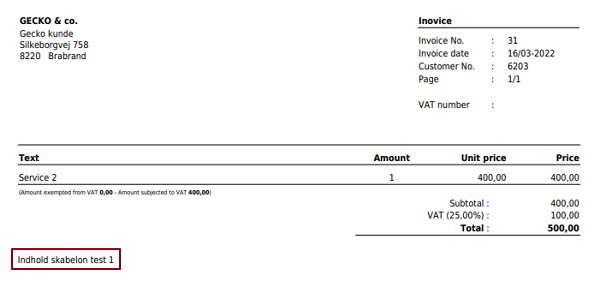
When the text is saved on an invoice it can will appear in an invoice PDF, where it gets an insertion code [InvoiceExtraText]. When the extra text has been added to an invoice, it will look like the following:
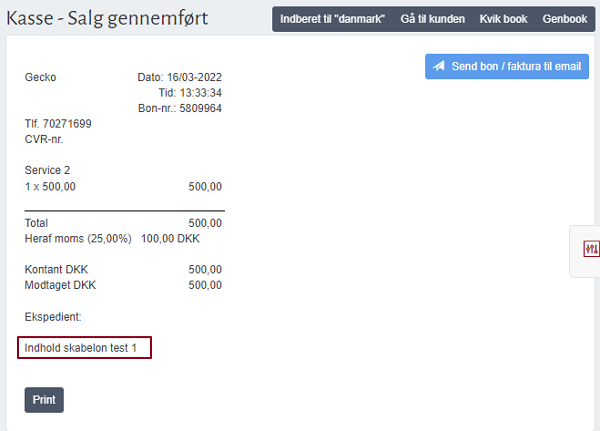
When it has been added to a receipt, it looks like this:
|


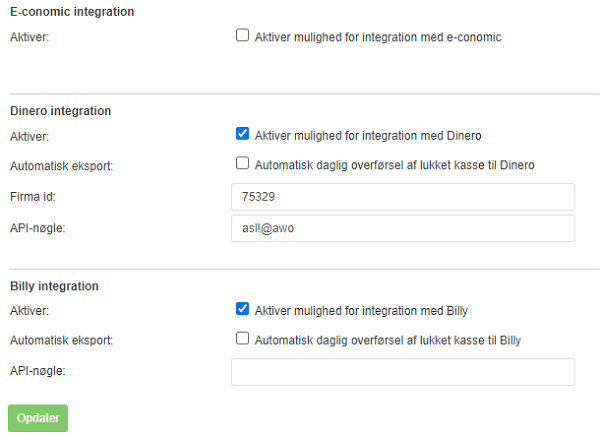
Settings for cash register export Under 'Cash register export settings' you can change settings that affect your ability to export your cash register statements to an accounting system, e.g. E-conomic or Dinero. The cash register export can be used in two ways: 1) export to a .csv file that can then be imported to your accounting system, or 2) export directly to the accounting system E-conomic or Dinero. The export is of your completed cash register statements, i.e. your closed cash registers (see Export of cash register statements for more information). You have the following options:
It is important always to enter both an account number and a description if a space should be included in the export. For a further description of each of the spaces that you find under 'Account numbers for item groups', 'Account numbers for payment types' and 'Additional account numbers' and that can be used for setting up a cash balance export, see this .
Remember to click on 'Update' to save any changes Please note! It is your responsibility to ensure that everything is correct before you book the export in your accounting system. If in doubt, we recommend that you contact your accountant. |

Payment type settings 'Under 'Payment type settings' you have three options:
|

Log Under 'Log' you can see which changes have been made for the cash register, as well as who made these changes.
|
