
Guides
Trin for trin-vejledninger til opsætning og brug af systemet.
Guides - Automatic booking of resources
-
Guides
- General
- Booking
- Event
- Cash Register Add-On
- Gift Voucher Add-On
- Marketing Add-On
- Record Add-On
- Form Add-On
- Documents
- Online Payment Add-On
- SMS Add-On
- Integrations
- For developers
Book rooms and equipment automatically with the service, so the customer only sees times when they are available.
Automatic booking of resources
If a service requires a room or some equipment, the resource can be booked automatically every time the service is booked. The customer is then only shown times when the resource is also available. The resource can be booked for a shorter or longer time than the service itself. It could e.g. be a hairdresser who uses a drying hood for the last 45 minutes of a 90-minute hair colouring, so the drying hood can be booked by others for the first 45 minutes.
Get startedGo to 'Settings' > 'Booking' > 'Services', click 'Edit' next to the service, and open the tab 'Resource settings'.
(1) Tick 'Activate booking of resource (1)'. (2) Under 'Standard resources' you choose a whole group, e.g. 'Behandlingsrum (Select randomly from group)', or single resources in the group. The system books randomly among the chosen ones. The more resources there are to choose from, the more available times the customer gets. If you only want to use some of the resources in a group, e.g. 'Drying hood 1' and 'Drying hood 3', choose them one by one. (3) Under 'Count resources' you choose a count resource. The number in brackets is the count. You cannot combine a count resource with standard resources in the same resource field. (4) 'Set the start time of the resource' and (6) 'Set the end time of the resource' (see below). (5) 'Offset start time +/-' moves the start of the resource in relation to the service. (7) If the service needs several different resources, e.g. both a room and a set of hot stones, activate 'Activate booking of resource (2)' and, if needed, '(3)'. (8) Click 'Update' to save. |

 |
Please note! A standard resource must be in a resource group to be chosen here. Resources under 'Not in group' can only be booked manually. Count resources have no group and can always be chosen. |
Start and endUnder 'Set the start time of the resource' you choose:
Under 'Set the end time of the resource' you have the same options: 'By the end of the booking', 'Optional end time' and 'Offset end time +/-'. If the service is a class or a multi calendar booking, the resource is by default booked once per participant. If only one shared resource is needed, e.g. one room for the whole multi calendar booking, tick 'If marked, the resource is booked one time per class/multi calendar booking'. The resource is then placed on participant 1's booking. The first person to sign up for the class or multi calendar booking therefore locks the resource. If participant 1 deletes the booking, the resource is locked to participant 2, etc. |
|
Please note! If the resource is not available, the service cannot be booked – even if the calendar has available time. Therefore set the start and end so the resource is not booked for longer than necessary. Automatic resource booking only works going forward: Bookings already made for the service do not get the resource. If they should have it, book the resource manually (see Manual booking of resources). |
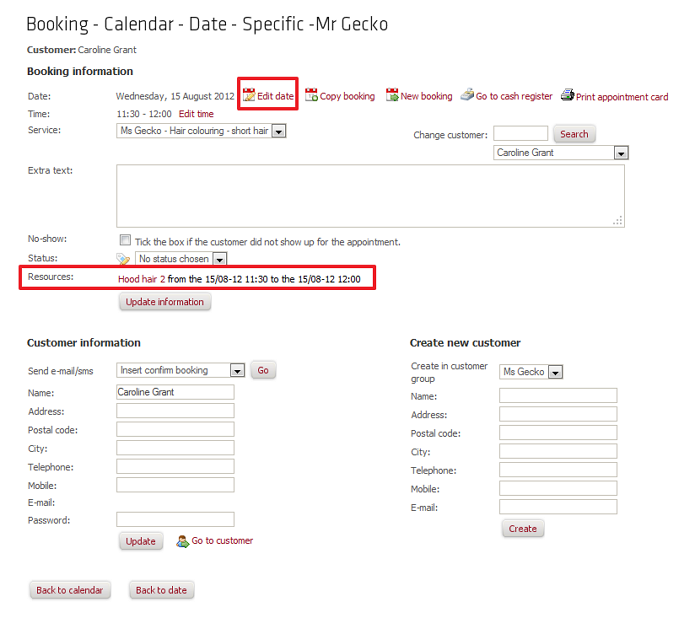
When you have activated booking of resources, the booked resource will be shown on the specific booking.
You cannot change the booking of the resource here, but by pressing the name of the resource you will be transferred to the page containing the ’Show / Book’ feature where changes can be made (See Manual booking of resources for more information). |
|
Please note! If you use ’Edit time’ to move a booking, the resource is not moved automatically. If you have a resource linked to a booking, you should always use ’Edit date’ in order to move the booking – Even if you only want to move the booking e.g. 5 minutes back. |