Any questions

We are happy to help!

Question about Gecko Booking?

If you are unsure whether Gecko Booking is right for you, or if you have other questions, we would love to hear from you!

All good!
Please enter your name.
All good!
Please enter your email.
All good!
All good!
Please enter your question.

Fields marked with an * are required


Guides

Trin for trin-vejledninger til opsætning og brug af systemet.

Guides - Edit voucher

Edit voucher

By clicking the cog wheel icon opposite a voucher under 'Define voucher', you can edit additional voucher settings. If you have chosen to edit a normal item (i.e. not a voucher), you have almost the same options as when a voucher is chosen. Where differences exist, these will be explained.

All information registered about the chosen voucher is listed here. By clicking the arrow in the grey bar, you can see all information in the chosen category.


Under 'General settings', you can change the following general voucher settings:

  • ID: See the ID of the voucher.
  • Date created: See the date on which the voucher was created.
  • Date updated: See the date on which the voucher was last changed.
  • Active: Determine here, whether the voucher should be active, i.e. whether purchase of this voucher is possible.
  • Type: Choose here, which type the voucher should be. 
  • Exempt from VAT: Here, you can make the voucher exempt from VAT. You have two options:You can choose that an item should always be exempt from VAT or that this exemption only applies if the employee is likewise exempt from VAT. This means that if this feature has been activated, the same voucher will have different VAT statuses, depending on whether the employee is exempt from VAT (see the Cash Register Add-On for more information).
  • Name: Change the name of the voucher here.
  • Item number: Change the item number of the voucher here.
  • Price: Change the price of the voucher here.
  • Cost price, barcode, item group, and supplier: These settings are only relevant if you have purchased the Cash Register Add-On (see the Cash Register Add-On for more information).
  • Require customer: If ticked, every purchase in the cash register requires a customer.
  • Move customer group: Choose to have the customer moved to a different customer group, when using this card.
  • Long description: Enter a long description of the voucher to provide your customers more information about the content of the voucher.

Remember to click on ‘Update' to save any changes!


In most cases, Linked services are only relevant if the chosen item is a normal item, i.e. not a voucher. 


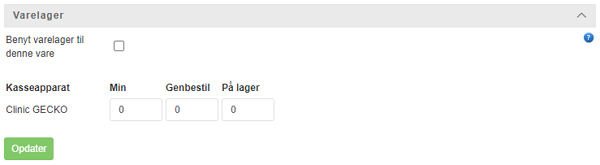
If you have purchased the Cash Register Add-On, you can change the stock settings for the chosen item. In most cases, stock settings are only relevant if the chosen item is a normal item, i.e. not a voucher. Please note that the use of a stock requires the purchase of the Cash Register Add-On.

Remember to click on 'Update' to save any changes!


Under 'Gift voucher / Online shop item', you can change the following settings, which are specific for vouchers:

  • Show the item online: Determine here, whether the voucher should be shown in the online shop. Please note that if the voucher is inactive, it will not be shown online.
  • Voucher description: Edit the voucher description, you entered when you created the voucher. The description can be inserted on your vouchers with the substitution code [VOUCHERDESCRIPTION].
  • Long voucher description: Enter a long description of the voucher. The description can be inserted on your vouchers with the substituion code [VOUCHERDESCRIPTIONLONG].
  • Value (shown if the voucher is a discount voucher): State the value of the discount voucher. The value is normally higher than the price.
  • Amount of passes (shown if the voucher is a MultiPass voucher): State the amount of passes, the MultiPass voucher consists of.
  • Voucher validity period: State the validity period of the voucher. You can choose between using the standard period, i.e. the validity period that is set under the general settings, to define the period, which will result in a unique validity period, or to define a fixed period, which means that the voucher will be valid in a particular period regardless of the time of purchase.
  • Can choose "valid from date" at purchase in cashregister: If ticked, you can determine when the voucher should be valid from, when selling the voucher via the cash register. Additionally, you can choose either ‘Valid from date of purchase' or ‘Valid from expire date of previous card, else date of purchase'. By choosing the latter, the new voucher will be valid from the expiration date of the previous card. For example, if you have defined that vouchers should be valid for one month and your customer's existing voucher expires on the 19th of September, the new voucher will be valid from the 20th of September and one month forth to the 19th of October.
  • Can choose "Valid from" at purchase: If ticked, the customer can determine when the voucher should be valid from. This could be used e.g. for subscriptions, if the customer can determine when the subscription becomes effective.
  • The voucher is personal and can be used by the owner only: If ticked, the voucher will be personal, i.e. only its owner can use it to make a payment. If the voucher has been purchased by a particular customer (e.g. via the cash register), the voucher will become locked to this customer. If the voucher has not been purchased by a particular customer (e.g. via the online shop), the voucher will become locked to the first customer who uses the voucher to make a payment. Personal vouchers can be used, e.g., for subscriptions when only one customer (and not his/her entire family) should be allowed to use the subscription. In addition, you can choose that More users can be attached to same voucher. Hence, despite the voucher being personal, it does not have to be limited to one specific customer, but can be limited to more customers simultanously. The selected customers can hereby use the same voucher.
  • Restrict voucher to the items/item groups listed below: You or your customers can restrict the voucher to one or more items or item groups. Please note that this requires the purchase of the Cash Register Add-On, as there otherwise wont be any items or item groups to restrict the voucher to. Can customer select specific item for voucher (shown if the voucher is a gift voucher): If ticked, your customers can determine, which item the gift voucher should be restricted to. In addition, you can set Voucher limited to customer selected item only. Choose an item or an item group and click on ‘Add item' or ‘Add item group'. The voucher has now been restricted to the chosen item or item group. Add the desired number of items and/or item groups by following the same procedure. This feature could be used if the voucher is e.g. a MultiPass voucher for 10 massages, wherefore the voucher should be restricted to the item ‘Massage'. The feature can also be used if you want to create a gift voucher for a certain service. In this scenario, you restrict the gift voucher to the desired service, i.e. the item number of the service. If you have sold copies of this voucher before making the item restrictions, you can copy the restrictions to these sold vouchers by pressing the button 'Update limitations on already issued vouchers'. Subsequently, you will be transferred to a list of the specific vouchers sold of this type, where you can choose the vouchers on which the item restriction should be implemented.

Remember to click on ‘Update' to save any changes!


Please note! When you make changes to a voucher, it only has an effect prospectively. This means that vouchers already sold are not affected by the change. However, as previously mentioned, you can copy item restrictions to vouchers already sold, but this does not happen automatically. Consequently, you have to click on 'Update limitations on already issued vouchers'.


If you have created a reward program, you will be able to add the voucher to the program. Please note that the use of reward programs requires that the Cash Register Add-On has been purchased.


Under 'Postings' you can see purchases made of this voucher in the online shop, in online booking and in the cash register system. Please note that this requires the purchase of the Cash Register Add-On plus the activation of the stock feature.


Here you can see a log of changes made to the value card. 


Try a Free and Non-Binding Demo of Gecko Booking & Administration

Fill out the form, and you will receive a demo as soon as possible.

All good!
Please enter the company name.
All good!
Please enter your phone number.
All good!
Please enter your name.

Fields marked with an * are required